Paying for the first time? We may text you a code to confirm your number first. You only do this once.
Pay with a card
Visa or Mastercard
-
Make sure your card works online
Use a Visa or Mastercard that your bank has switched on for online payments. If you're not sure, ask your bank to turn on online (e-commerce) payments.
-
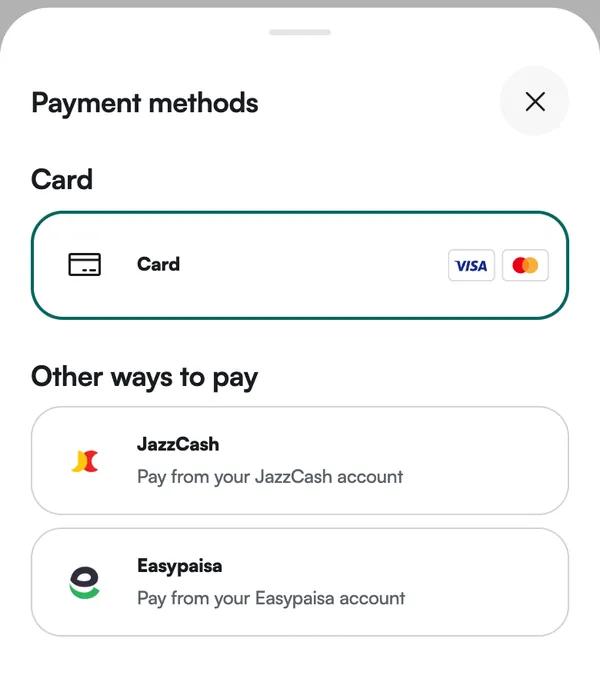
At checkout, tap
Change
and pickCard
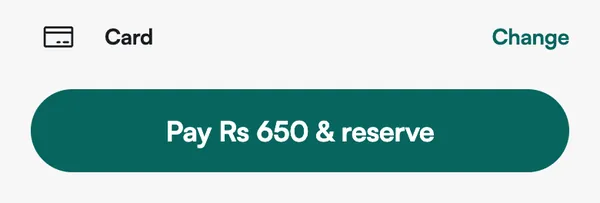
The row above the Pay button shows how you're paying.
Change
opensPayment methods
. Paid by card before? Your card may already be underSaved cards
.
-
Tap
Pay Rs … & reserve
The button shows your order total.
-
Enter your card details on the secure card page
A
Payment
screen opens with aSecure
tag at the top. Type your card details there. -
Confirm with your bank
Your bank may send you a one-time code (OTP). Enter it on your bank's page. This can take a minute or two, so keep the app open.
-
You'll see
Loot secured!
Your bag is in
Bags
. We also send you a notification, and an email if your account has one.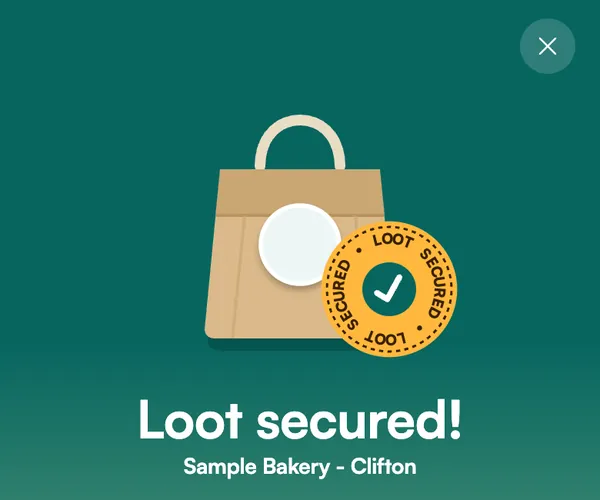
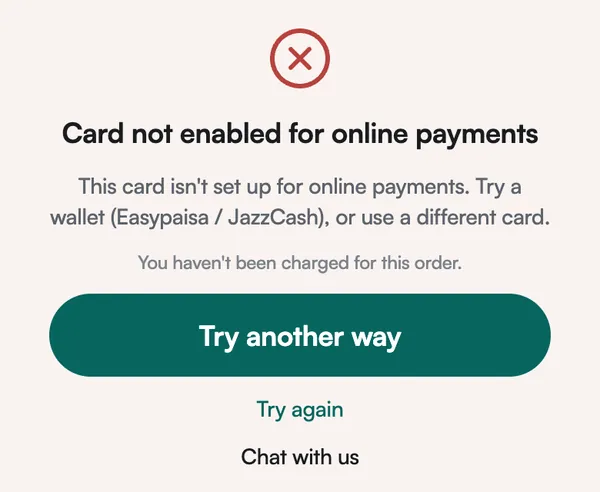
Card declined?
The app tells you why and says You haven't been charged for this order.
Tap Try another way
to pay with JazzCash or Easypaisa, or Try again
.
- Card not enabled for online payments: ask your bank to turn on online payments, or use another card.
- Not enough balance: try another card or a wallet.
- Verification timed out: the OTP wasn't entered in time. Try again.
- Card expired: use a different card.
Entered your card details already? Don't close the Payment screen. Your payment may still be going through.

Pay with JazzCash
You approve the payment in your JazzCash app
-
Have your JazzCash app ready
Signed in, with enough balance for your order.
-
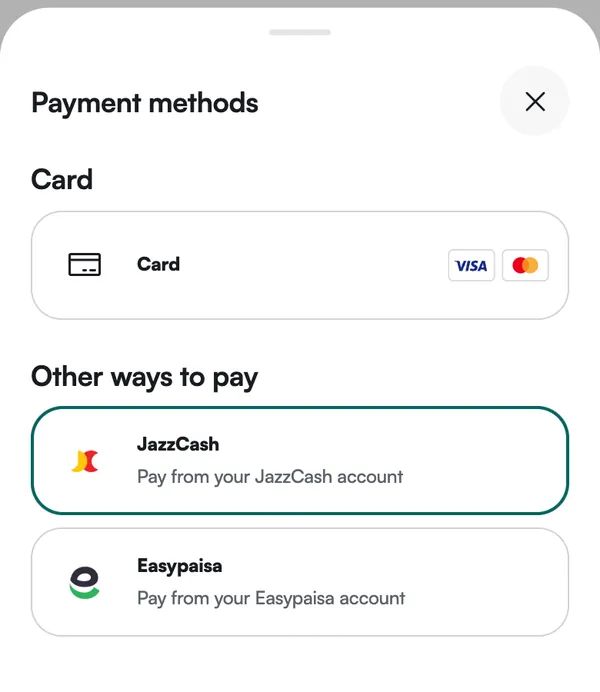
At checkout, tap
Change
and pickJazzCash
It's under
Other ways to pay
.
-
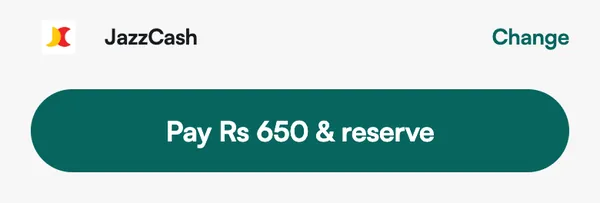
Tap
Pay Rs … & reserve
-
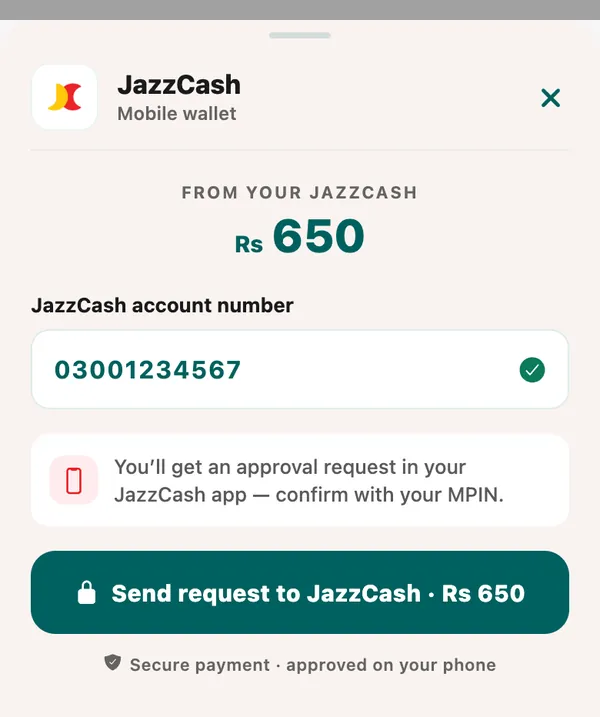
Check the number, tap
Send request to JazzCash
We fill in your mobile number. If your JazzCash account is on a different number, change it (11 digits, 03XXXXXXXXX).
-
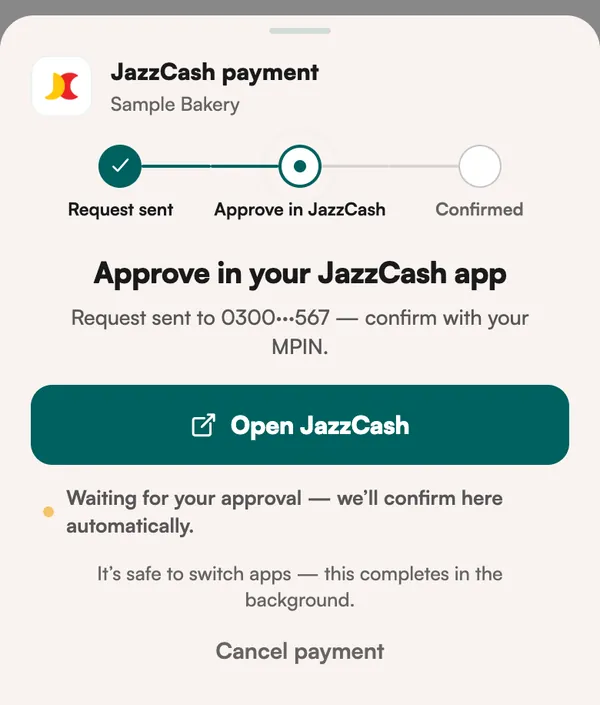
Approve in your JazzCash app with your MPIN
Tap
Open JazzCash
, find the payment request and confirm with your MPIN. Do it straight away: the request expires after a minute or two. It's safe to switch apps.No notification? Open JazzCash and check its payment requests.
-
You'll see
Loot secured!
The app moves on by itself once JazzCash confirms. Your bag is in
Bags
.
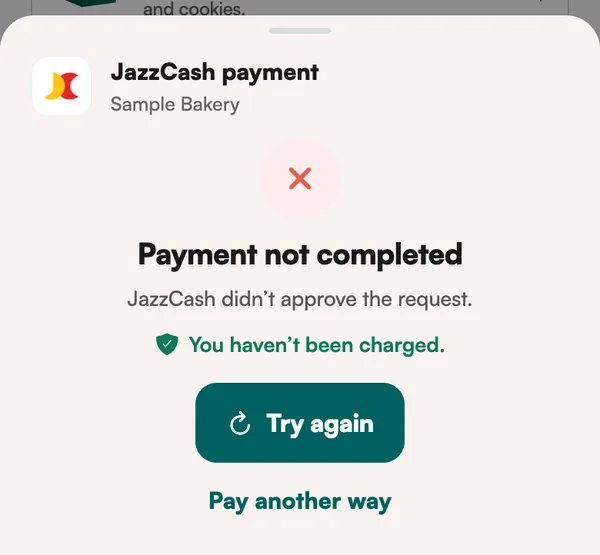
It says Payment not completed
?
If JazzCash didn't approve it, you haven't been charged. Tap Try again
or Pay another way
.
If you did approve it, don't pay again. Your bag or a LootWallet refund shows up in a few minutes.

Pay with Easypaisa
You approve the payment in your Easypaisa app
-
Have your Easypaisa app ready
Signed in, with enough balance for your order.
-
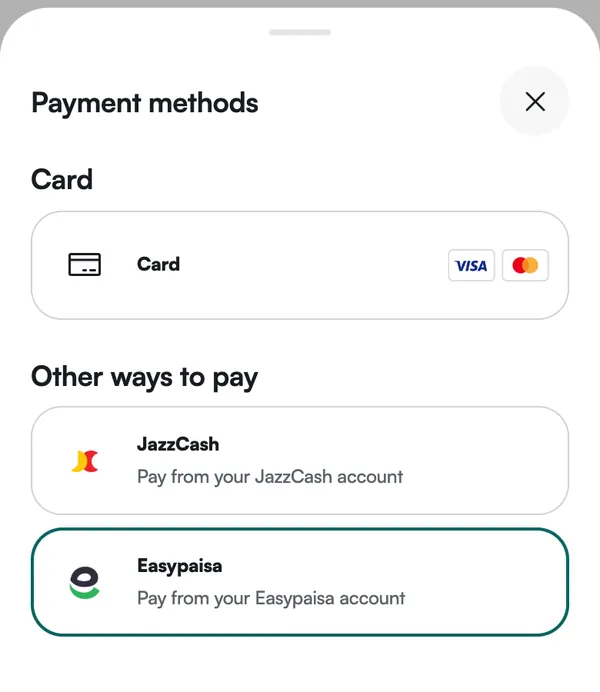
At checkout, tap
Change
and pickEasypaisa
It's under
Other ways to pay
.
-
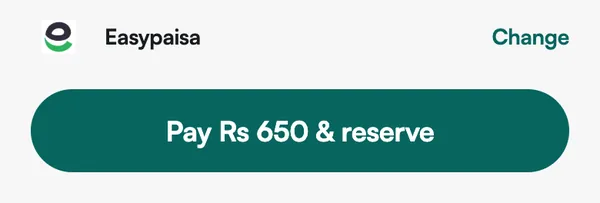
Tap
Pay Rs … & reserve
-
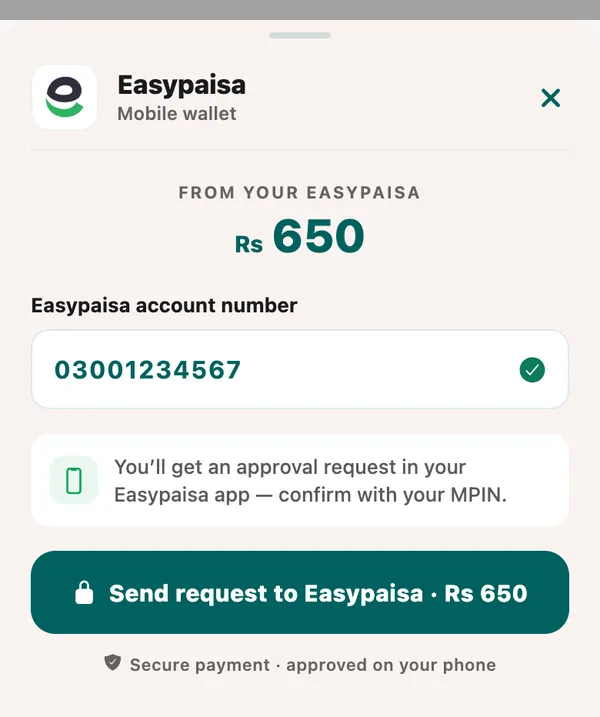
Check the number, tap
Send request to Easypaisa
We fill in your mobile number. If your Easypaisa account is on a different number, change it (11 digits, 03XXXXXXXXX).
-
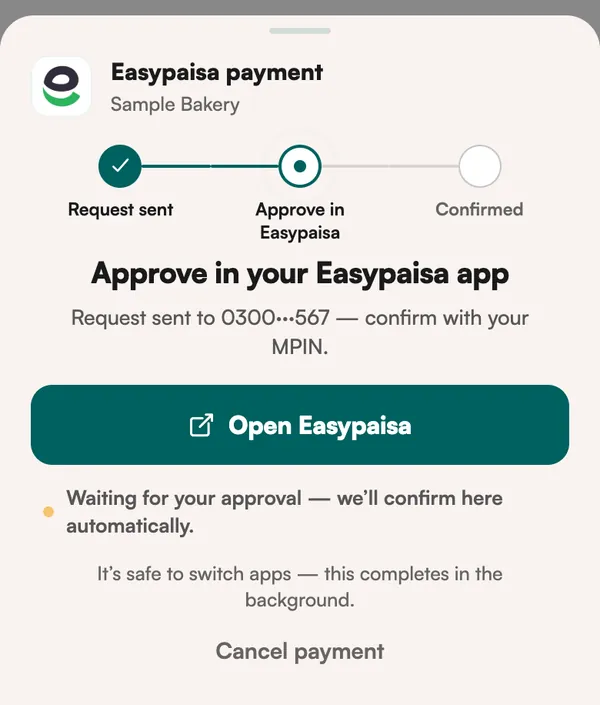
Approve in your Easypaisa app with your MPIN
Tap
Open Easypaisa
, find the payment request and confirm with your MPIN. Do it straight away: the request expires after a minute or two. It's safe to switch apps.No notification? Open Easypaisa and check its payment requests.
-
You'll see
Loot secured!
The app moves on by itself once Easypaisa confirms. Your bag is in
Bags
.
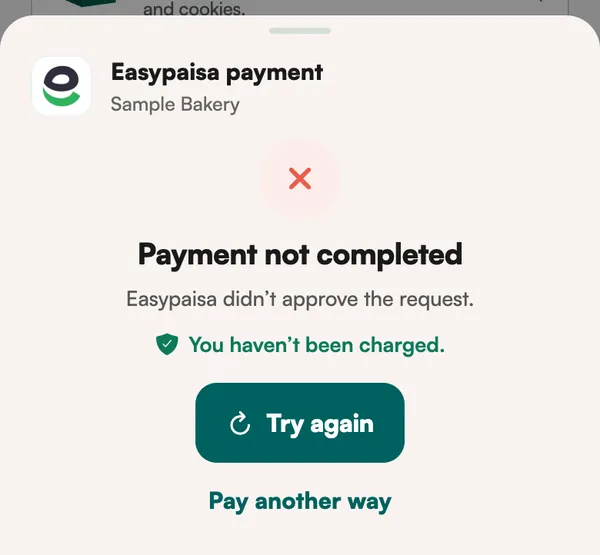
It says Payment not completed
?
If Easypaisa didn't approve it, you haven't been charged. Tap Try again
or Pay another way
.
If you did approve it, don't pay again. Your bag or a LootWallet refund shows up in a few minutes.
Still stuck?
Try another way
Switch between Card, JazzCash and Easypaisa at checkout. The one that just failed says Declined just now
. If you see Raast, you can also pay by scanning a QR in any bank app.
Use your LootWallet
Refunds go to your LootWallet. Switch on LootWallet
under Wallet & vouchers
at checkout to pay all or part of your order with it.
Money gone, no bag?
Don't pay again. Give it a few minutes: a payment that went through becomes your order or comes back to your LootWallet. Still nothing in Bags
? Chat with us.
Chat with us
In the app: Profile → Help & support → Chat with us.
We're open 10:00 AM – 2:00 AM, every day.